Step 1: Access the ‘Be a Speaker’ Option
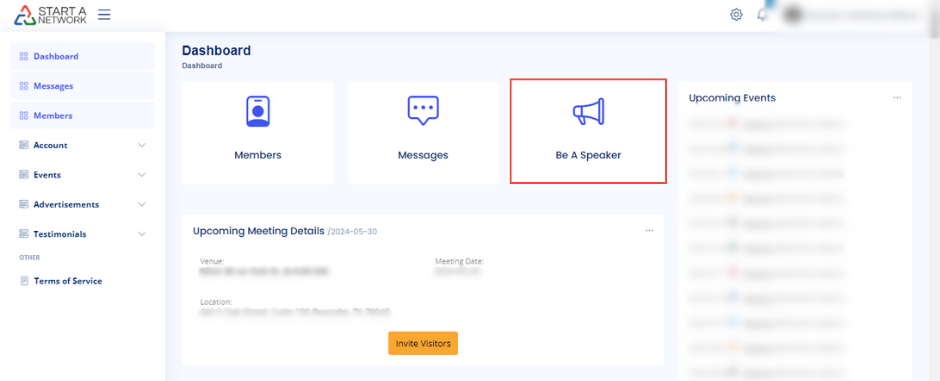
- Option 1: Click on the “Be a Speaker” tile located at the center of your dashboard.
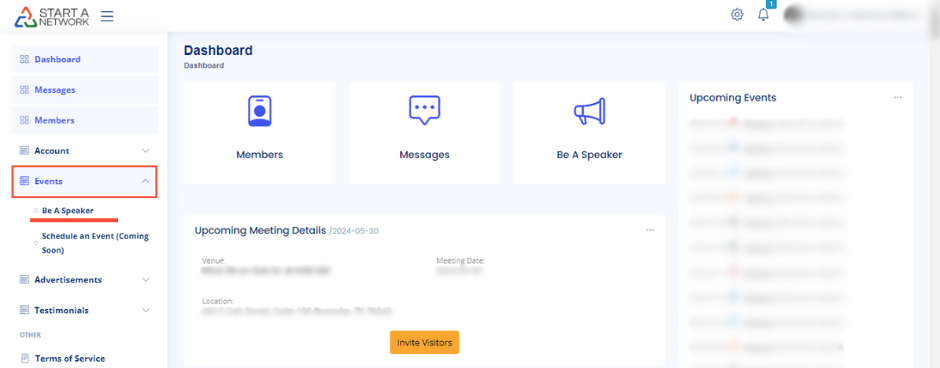
- Option 2: From the left-hand menu, navigate to “Event” and select “Be a Speaker.”
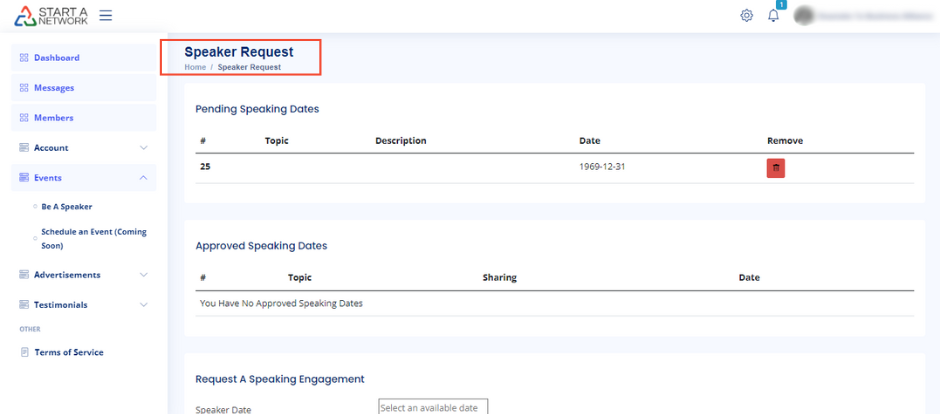
- You’ll be directed to the “Be a Speaker” page.
Step 2: Understand the Page Sections
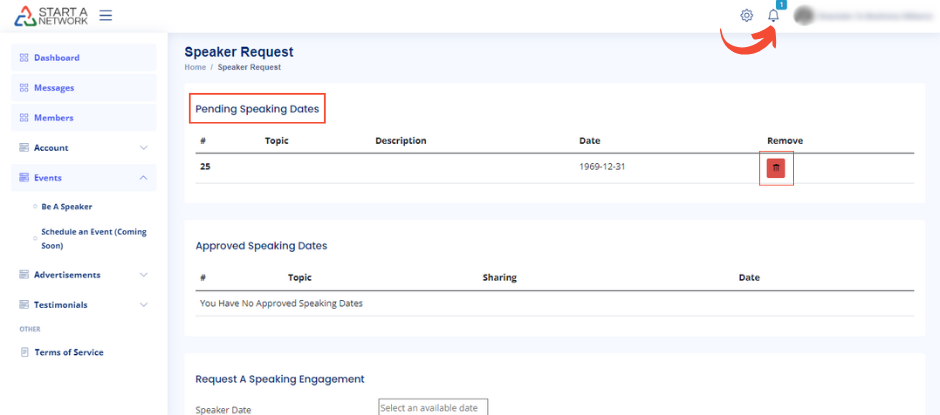
On the “Be a Speaker” page, you’ll see four sections:
- Pending Speaking Dates – Shows your submitted requests awaiting approval.

- Approved Speaking Dates – Displays the meetings where you’ve been approved as a speaker.

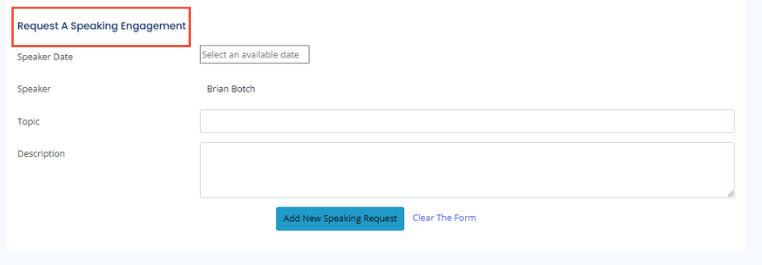
- Request A Speaking Engagement – Where you can submit a new speaking request.
- Delete Speaking Request – Allows you to remove any unwanted speaking requests.

Step 3: Request a Speaking Engagement
Click on the “Request A Speaking Engagement” button. You’ll need to fill out the following fields:
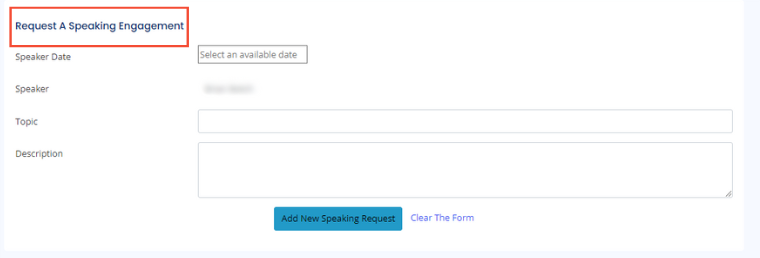
- Speaker Date: Click to select an available date from the pop-up calendar.
- Speaker: Your name will auto-fill in this field.
- Topic: Enter the topic you want to discuss.
- Description: Provide details about your topic.
Once done, click the “Add New Speaking Request” button. If needed, click “Clear the form” to reset the fields.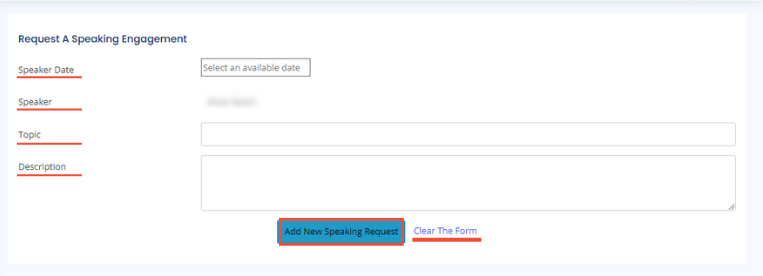
Step 4: Submit Your Request
After clicking “Add New Speaking Request,” your request will be listed under Pending Speaking Dates.
- Your network owner will be notified about the request.
- You can either wait for approval or withdraw the request by moving it to Delete Speaking Request.
Step 5: Wait for Approval
Once your request is approved by the network owner, it will move to the Approved Speaking Dates section.