Getting Started with Messaging
- Access Messaging:
- From the dashboard, click the “Message” tile in the center or the “Messages” link in the left menu. Both options lead to the same page.
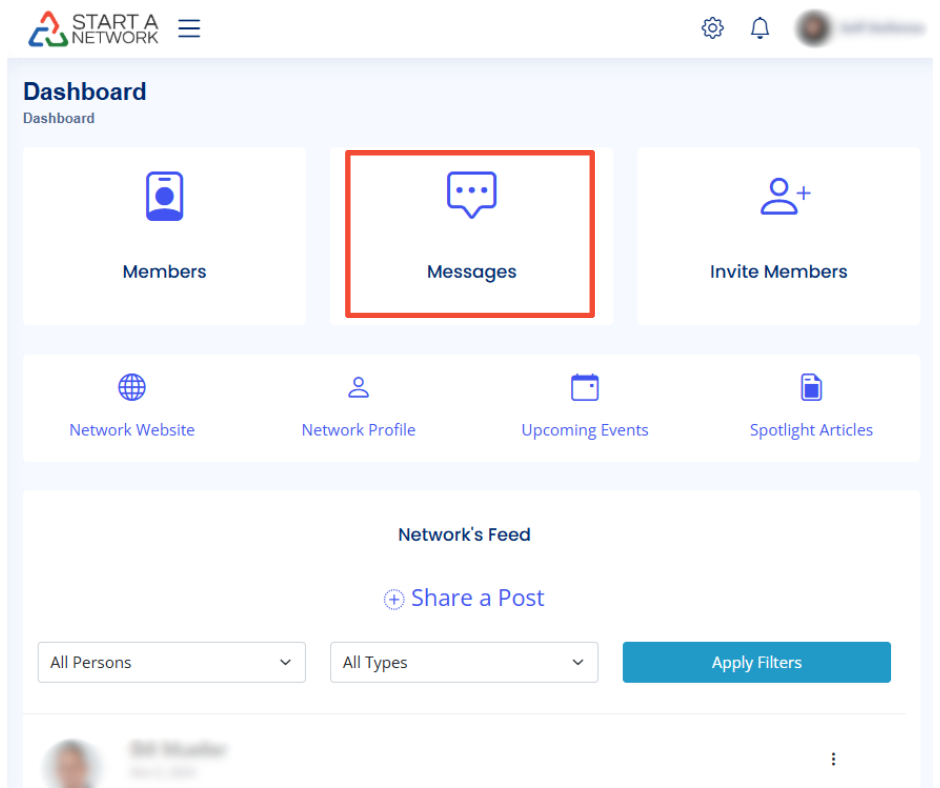
- From the dashboard, click the “Message” tile in the center or the “Messages” link in the left menu. Both options lead to the same page.
- Messaging Options Available:
- Chat (Direct Messaging)
- Group (Group Messaging)
- Add a Contact
- Settings
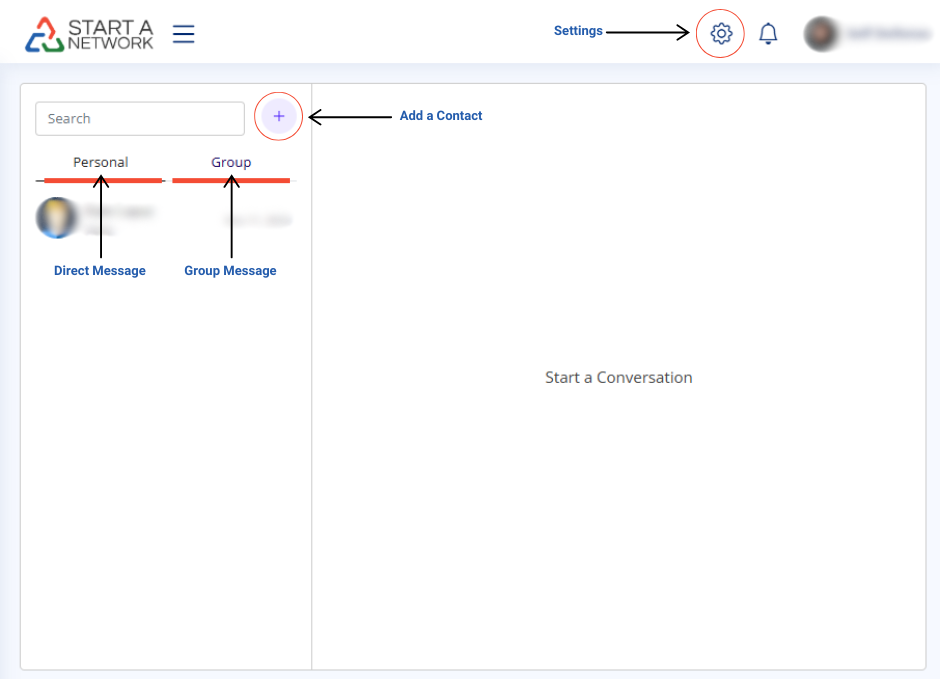
Using Direct Messages
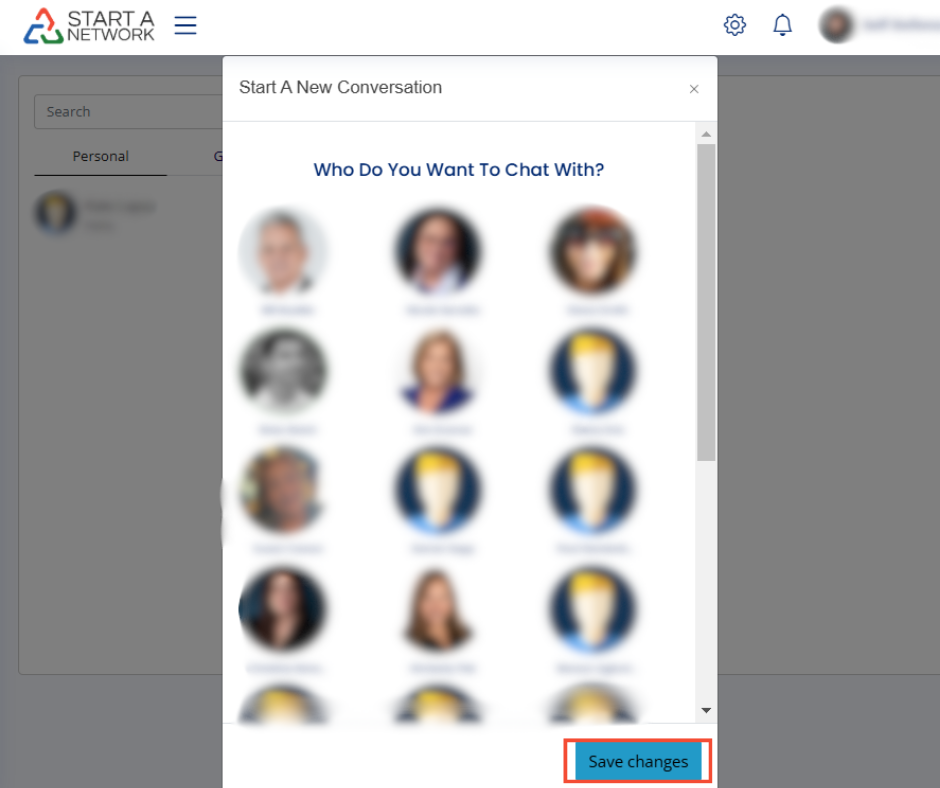
- Click the plus sign (+) to start a new chat.
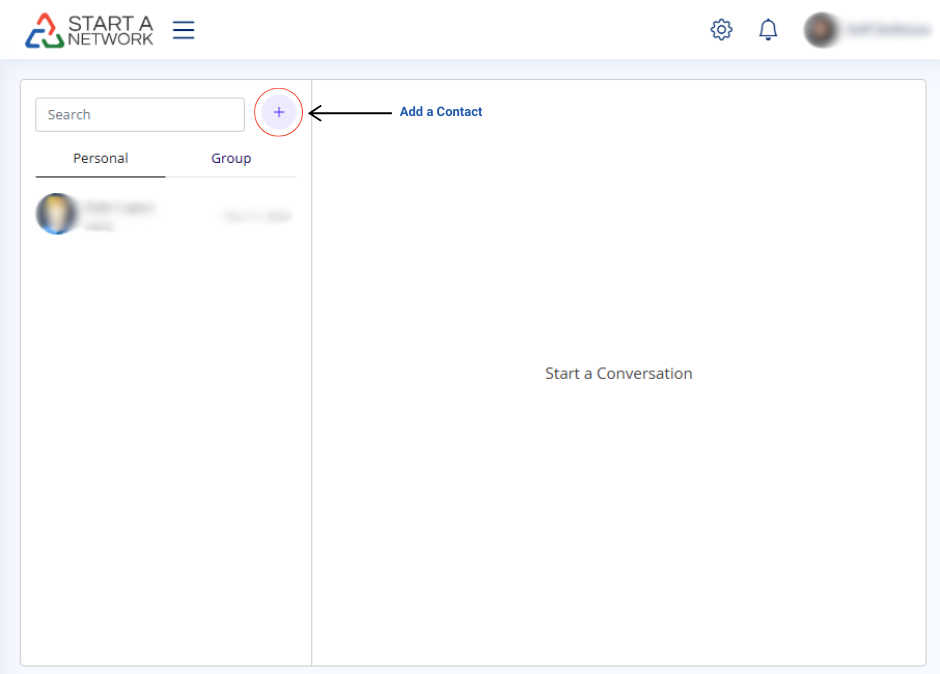
- Select the recipient from your contact list.
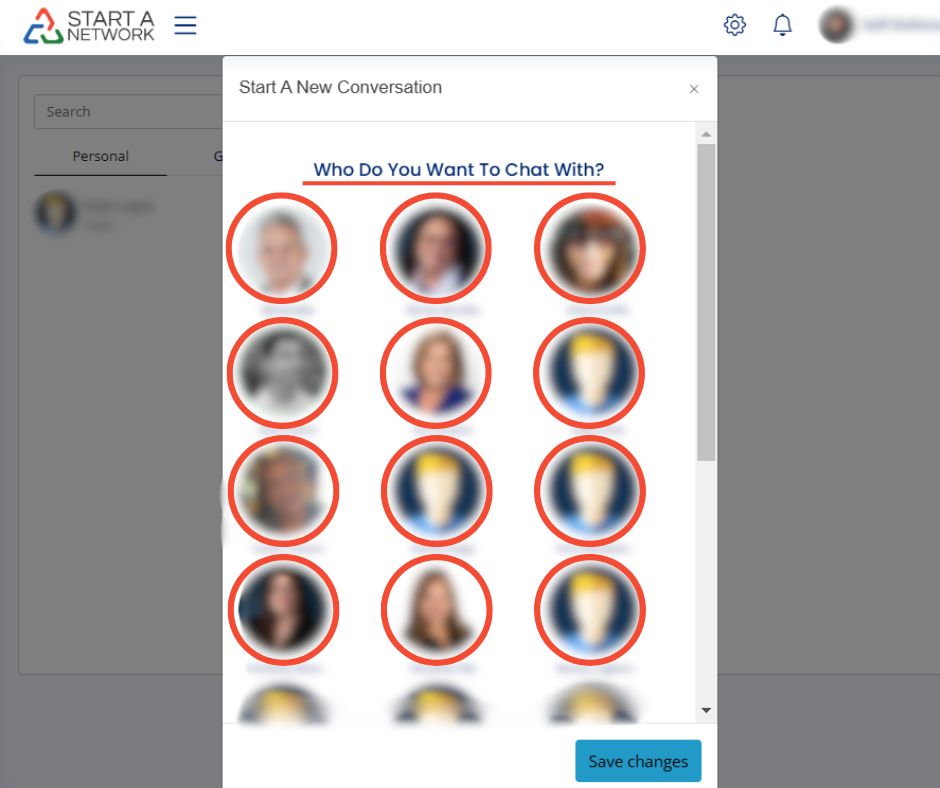
- Click Save Changes and begin chatting!
Features:
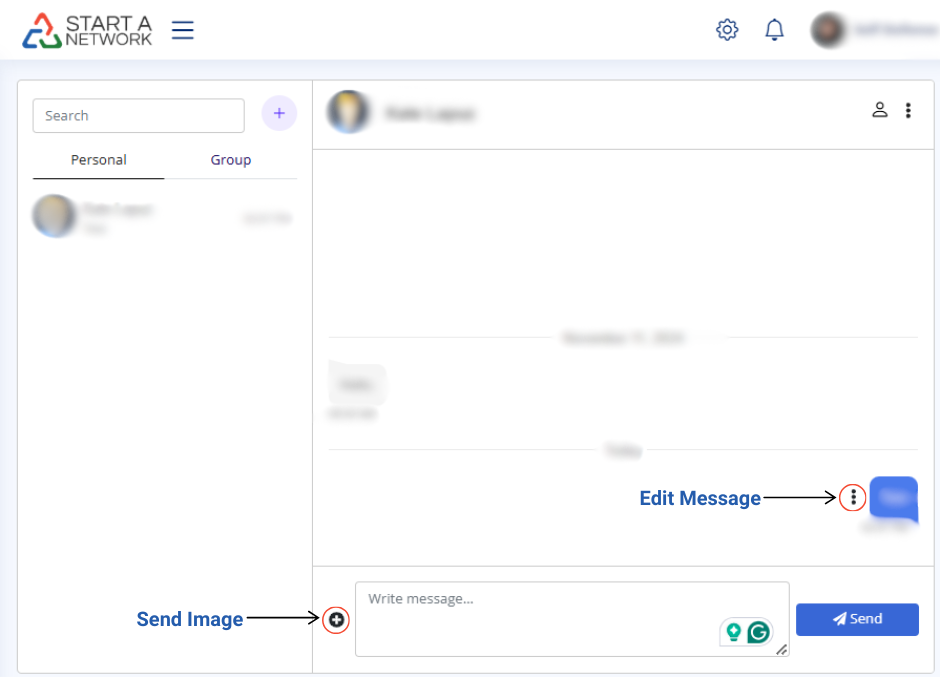
- Send Images: Tap the “+” icon, choose your image, and click “Send.”
- Edit Messages: Mistakenly sent a message? Click the three vertical dots on the message, choose “Remove,” and try again.
Creating Group Messages
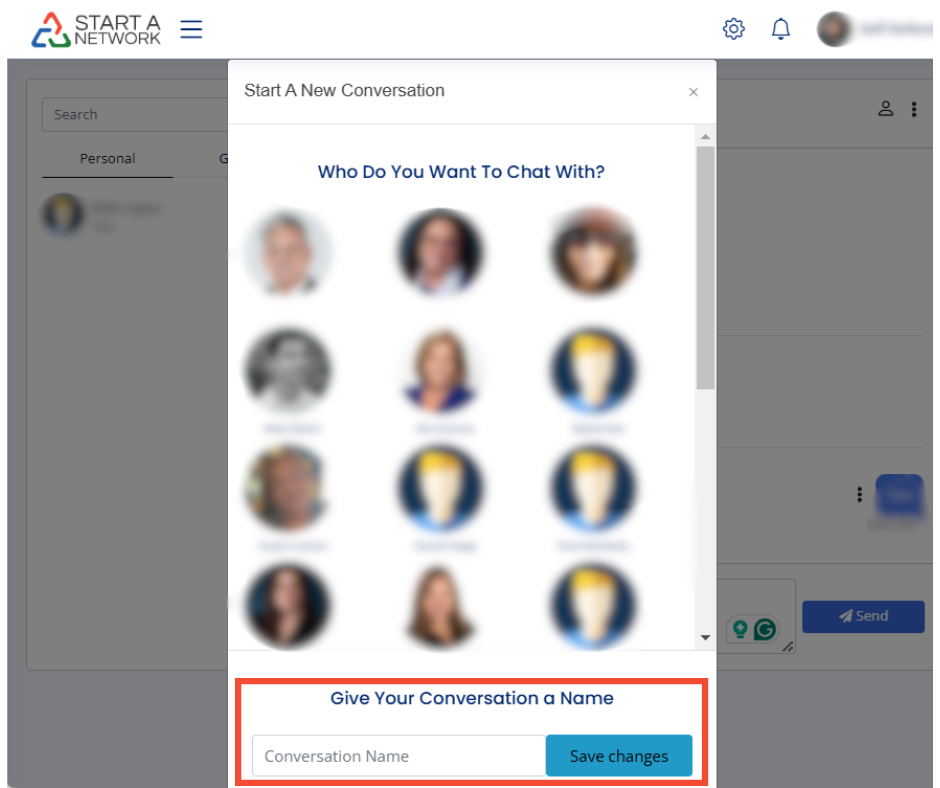
- Click the plus sign (+) and select multiple contacts.
- Enter a group name when prompted.
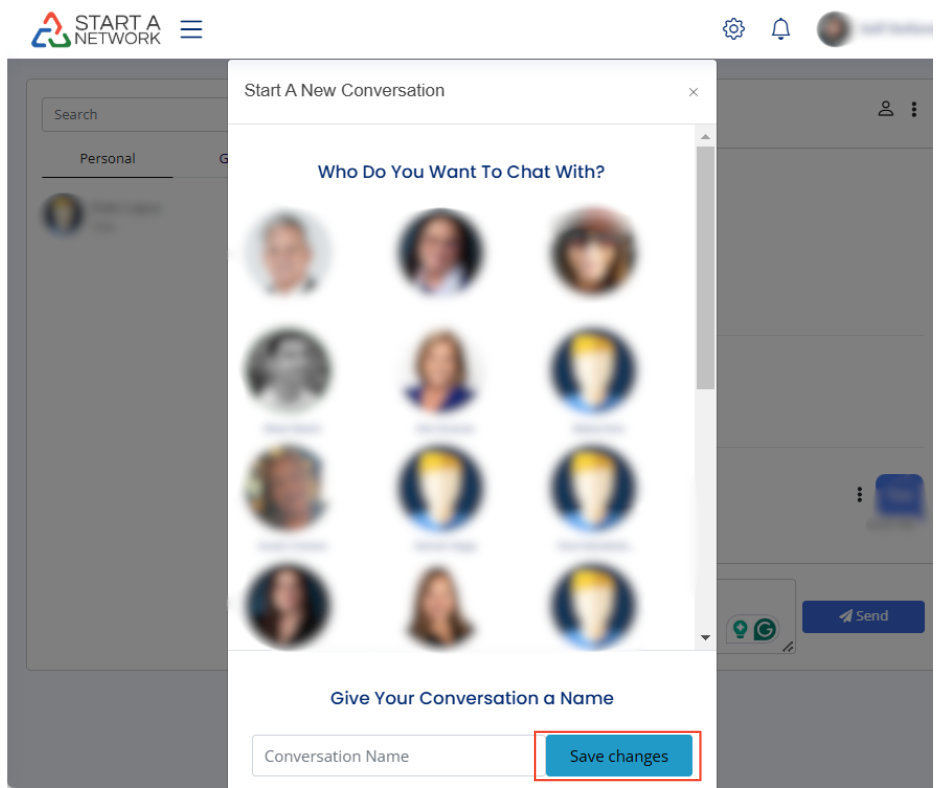
- Click Save Changes to start collaborating!
Switching Between Chats
- Direct Messages: Click the personal icon for a list.
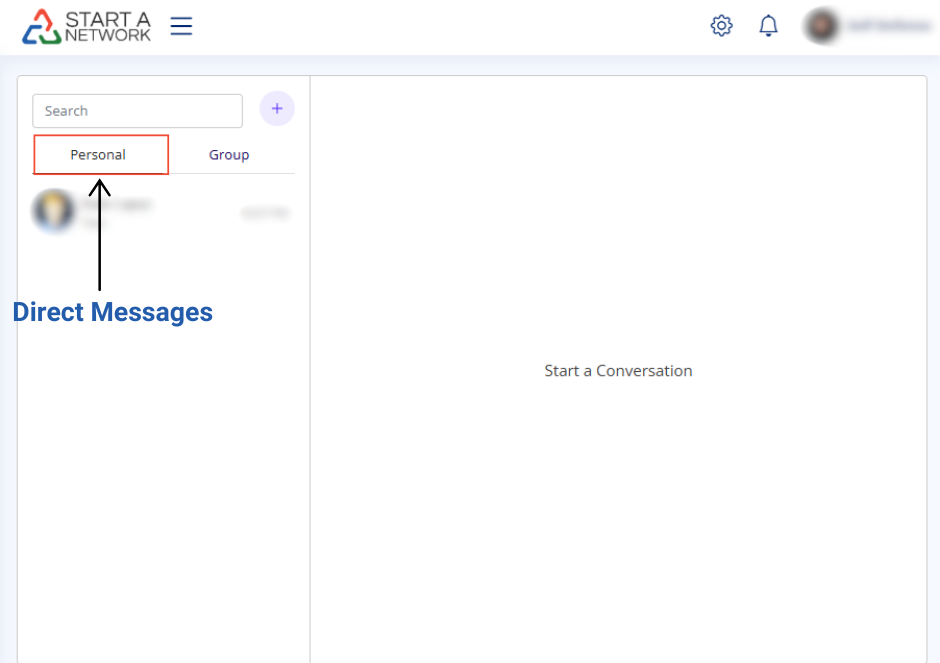
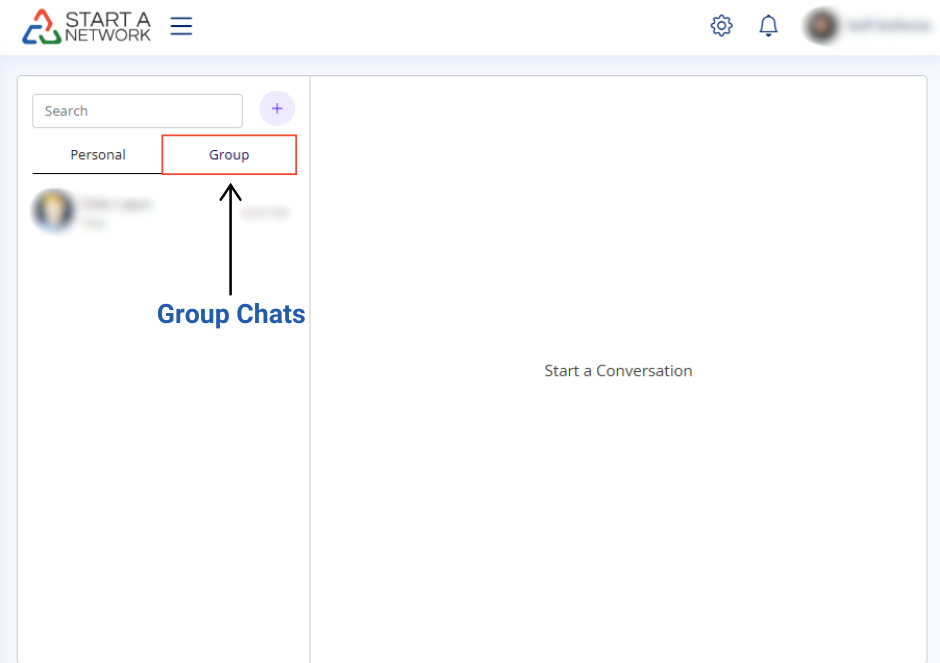
- Group Chats: Click the group icon.
Enabling Notifications
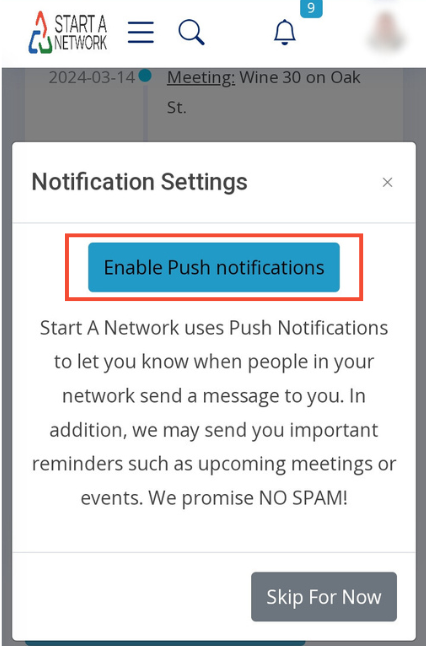
- Allow push notifications on your mobile app when prompted.
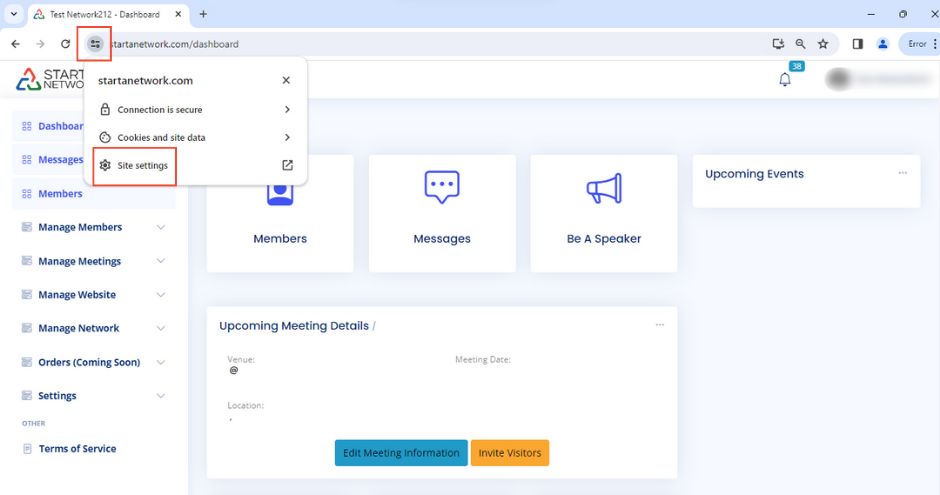
- For desktop, manually enable notifications in your browser (next to the address bar).
Pages: 1 2