Step 1: Navigate to the Subscription Page
- Head to your dashboard and click on Manage Network in the left-hand menu.
- Select Manage Subscription, and you’ll land on the Subscription Page.
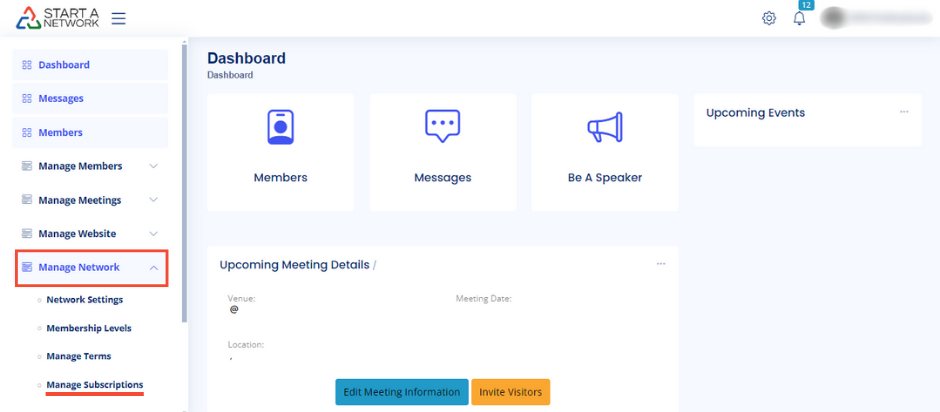
Here, you’ll see an overview of your network’s subscriptions, including both active and inactive ones. But let’s dig a little deeper.
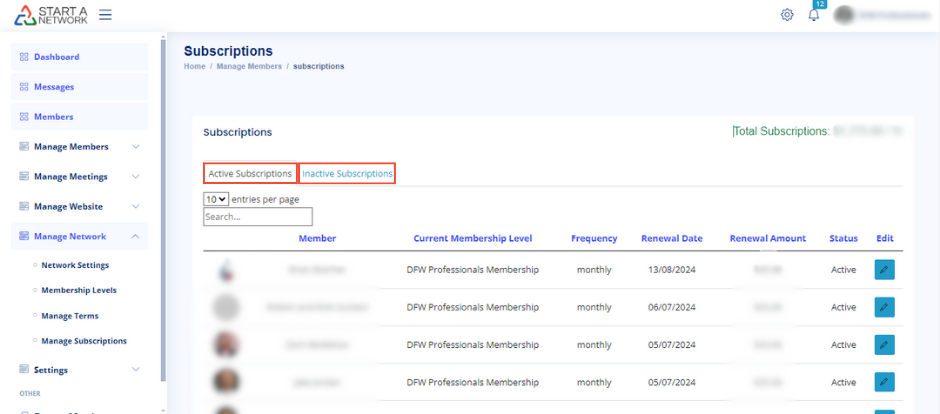
Understanding Active Subscriptions
Under Active Subscriptions, you’ll find:
- Member details
- Current membership levels
- Subscription frequency (monthly/yearly)
- Renewal dates
- Renewal amounts
- Status and more
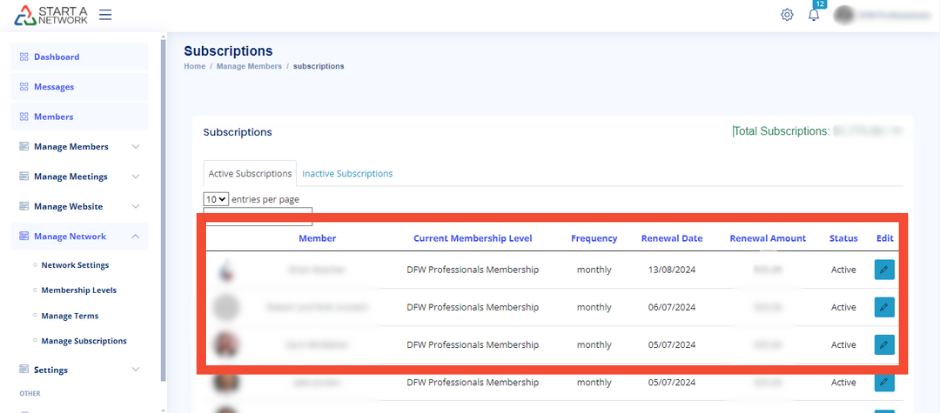
All these settings are linked to the membership levels you’ve created under Manage Network.
Making Changes to Membership Levels
If you need to update subscriptions for your entire network:
- Go to Membership Levels under Manage Network.
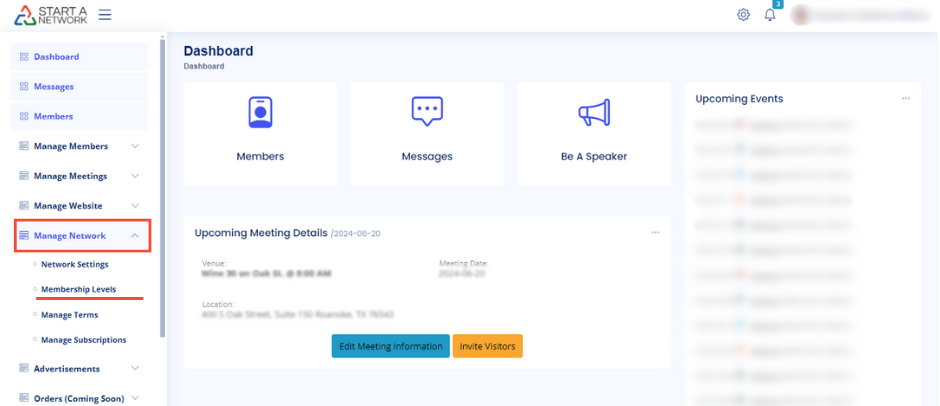
- Adjust pricing, frequency, or other options.
Key Considerations:
- Changes can take effect immediately or upon members’ next renewal.
- Canceling a membership level gives you options:
- Prorate refunds
- Move members to a new level
- Allow memberships to expire at renewal
Managing Individual Subscriptions
To edit a specific member’s subscription:
- On the Manage Subscription page, click the Edit icon next to the member’s name.
- Choose between:
- Cancel Membership: This removes the member from the network. Be cautious; they’ll need to be re-invited if they wish to return.
- Move to a Different Level: Transfer the member to another active membership level. Set up new recurring payments and decide whether to prorate the difference or apply the new rate upon renewal.
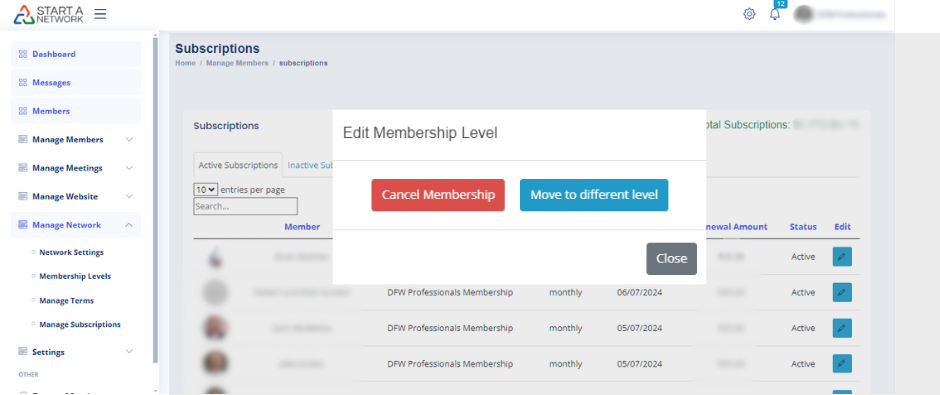
Inactive Subscriptions: To view members no longer actively subscribed, click Inactive Subscriptions.
What Members See
Your members can manage their subscriptions from their dashboard:
- Click Membership in the left-hand menu.
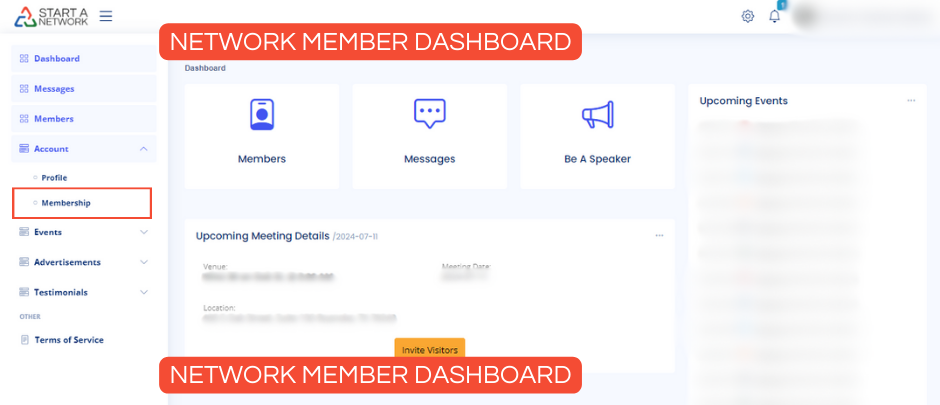
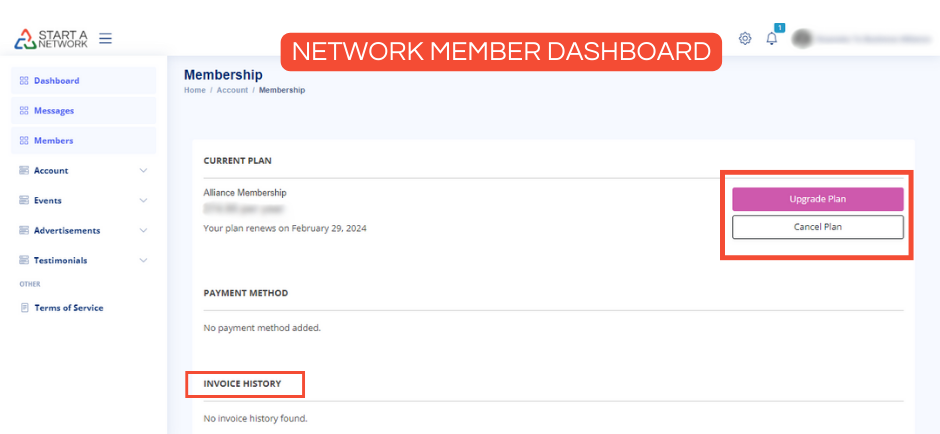
- They can:
- Upgrade or cancel their membership
- Download past invoices
Track Your Network’s Growth
As a network owner, you can monitor potential annual income from active subscriptions in the Total Subscriptions section.