Getting Started
- Open the StartANetwork mobile app or log into your dashboard on the website.
- Select the network you want to use from your network homepage by clicking on its name.
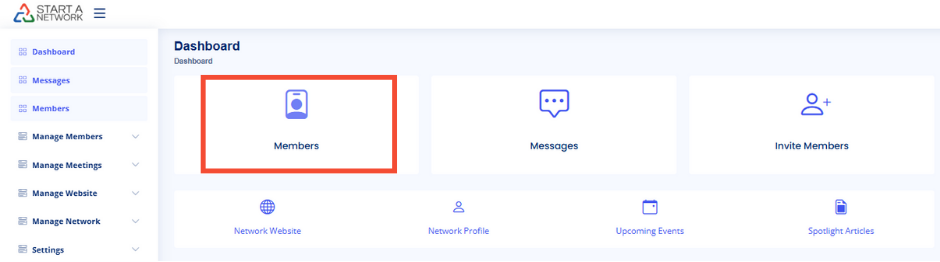
- You’ll be directed to the network Dashboard, where you can interact with members.
- Locate and click the “Members” icon in the top-left corner of your screen to access the Member Directory.
Exploring the Member Directory
The Member Directory lists all active members of the selected network. Each member is represented by a card that displays:
- Profile Picture
- Name
- Title
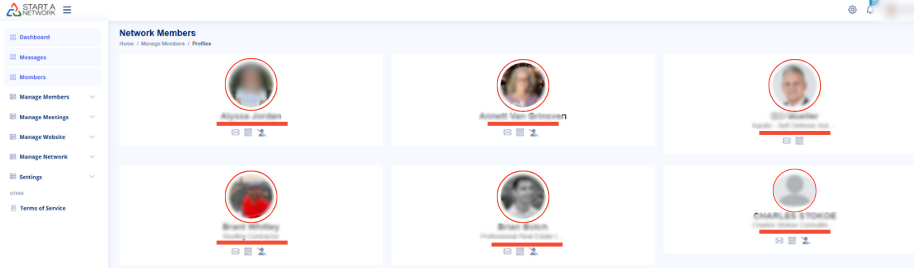
At the bottom of each card, you’ll see a series of icons. The available options differ based on whether you’re using a mobile device or a desktop/laptop.
Icons and Their Functions
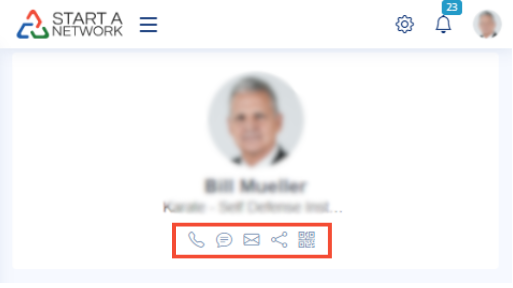
On Mobile Devices
- Phone Icon
- Initiates a phone call directly to the member.
- Opens your device’s built-in phone app, pre-filled with the contact number.
- Message Icon
- Allows you to send a text message using your device’s SMS app.
- In the future, this will redirect you to the StartANetwork messaging application.
- Email Icon
- Opens your default email application, enabling you to compose and send an email to the member.
- Share Link Icon
- Sends the member’s vCard (digital contact card) through various apps installed on your device.
- Options include social media, SMS, or other compatible apps.
- If your device doesn’t support sharing, clicking this icon redirects you to the member’s public profile page.
- Pro Tip: Clicking on a member’s profile picture shares their profile information directly instead of the full vCard.
- QR Code Icon
- Generates a QR code on your screen containing the member’s profile information.
- Scanning the code shares the contact details in vCard format to another mobile device.
On Desktop/Laptops
- Options are streamlined to include:
- Email Icon: Compose an email directly to the member.
- QR Code Icon: Generate and display the member’s QR code for sharing contact information.

Why Profile Information Matters
To maximize the directory’s potential, ensure your profile is fully populated with the information you want to share. This enables:
- Effective interactions within the network.
- Seamless sharing of contact details with others in the broader community.
Key Takeaways
The Member Directory is more than a list—it’s a hub for:
- Building meaningful connections.
- Facilitating communication and collaboration.
- Sharing network contacts with ease