Getting Started
- Log in to your dashboard.
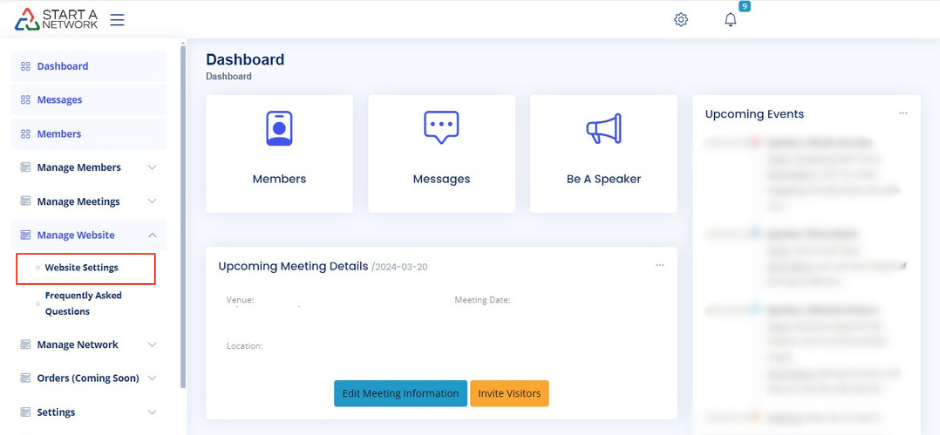
- Navigate to the “Manage Website” option in the left-hand menu.
- Expand the menu to reveal two options:
- Website Settings
- Frequently Asked Questions
Both options play a significant role in ensuring your network website is effective and informative.
- Click on Website Settings, and you’ll be presented with a screen to make real-time changes to your website.
 The General Settings section will be open by default.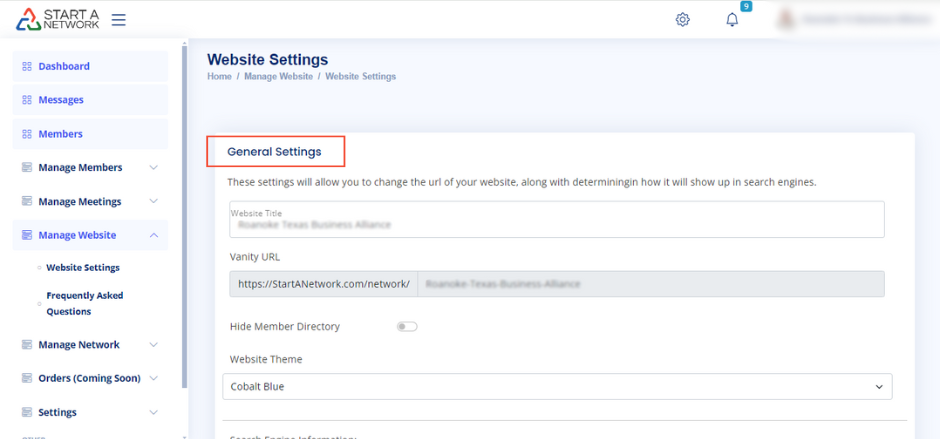
Pro Tip:
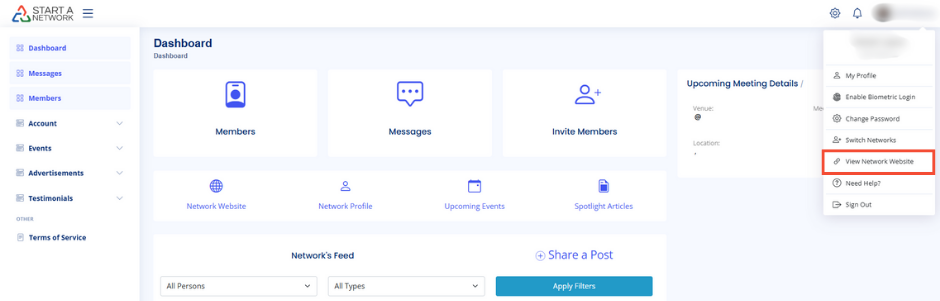
To preview changes to your website, click on your profile picture in the top-right corner of your dashboard and select “View Network Website”. This opens your website in a new browser window, allowing you to see your updates in real time.
General Settings: Components and Their Impact
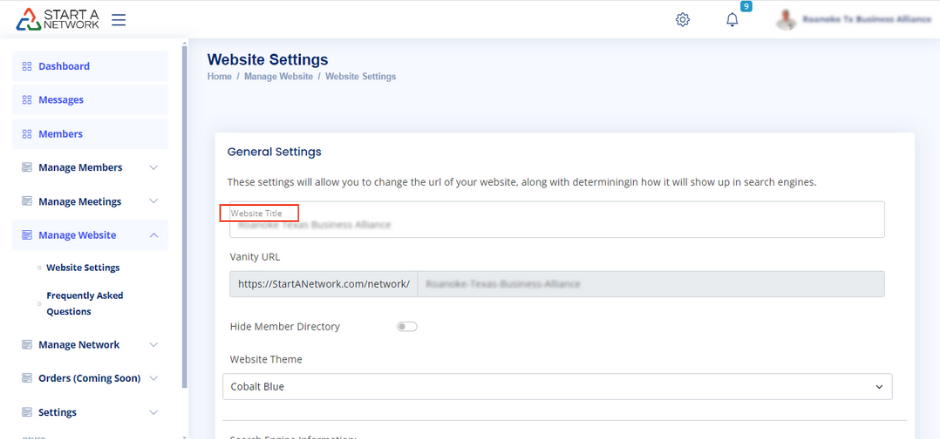
1. Website Title
- Default: Set to your network’s name.
- Customizable: You can change it to anything you want.
- Appearance: Displays in the top-left corner of your website next to the navigation menu unless a logo is uploaded.
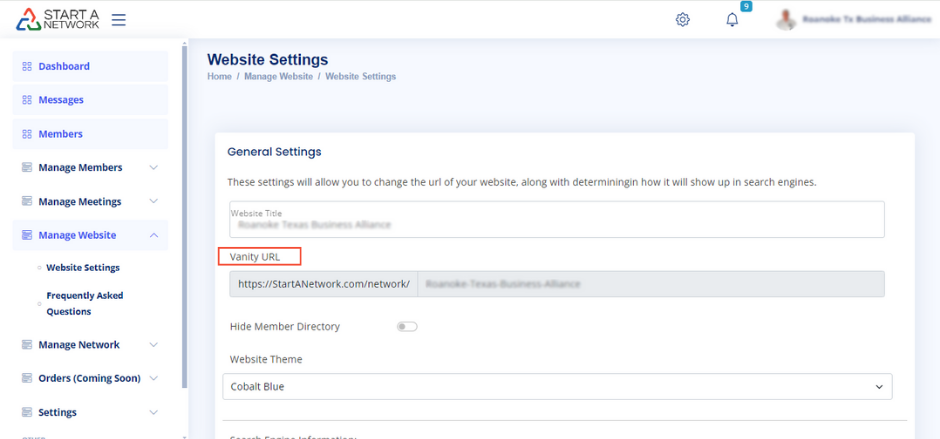
2. Vanity URL
- Definition: The address chosen during network creation.
- Usage: Share this link to invite others to your network.
- Note: Currently, the Vanity URL is not changeable, but upcoming updates will allow you to use a custom domain.
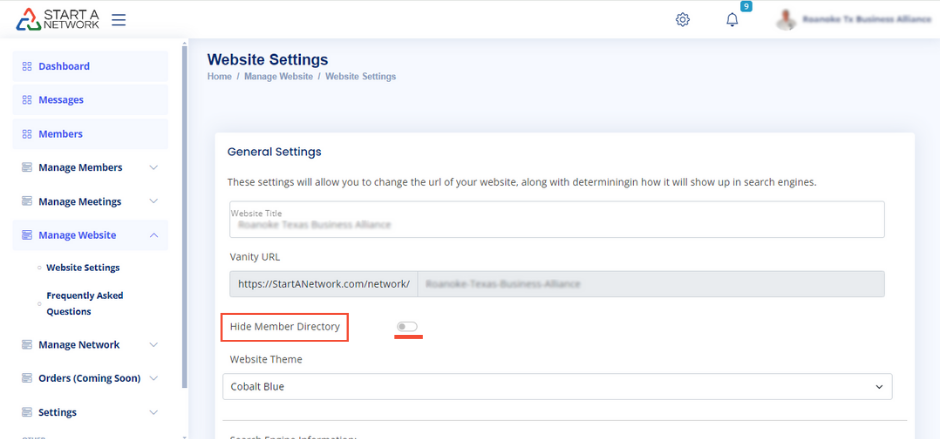
3. Hide Member Directory
- Availability: Accessible to StartANetwork Pro plan members.
- Function: Allows you to show or hide the member directory on your main website.
- Use Case:
- Hide the directory for privacy-sensitive groups like schools, churches, or exclusive communities.
- Members can still use features like activity feeds and messaging tools privately, while the public-facing site advertises your network.
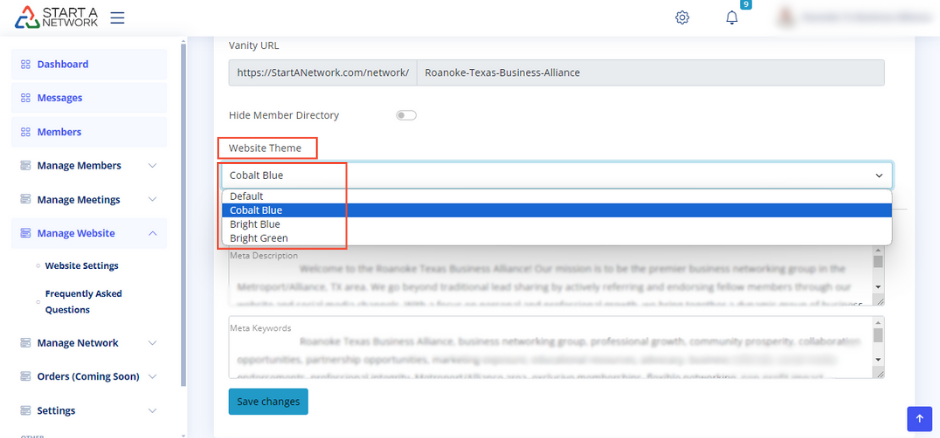
4. Website Themes
- Options: Choose from several available themes to change your website’s colors and fonts.
- Custom Branding: Need a unique look that matches your brand? Contact us for tailored packages that bring your vision to life.
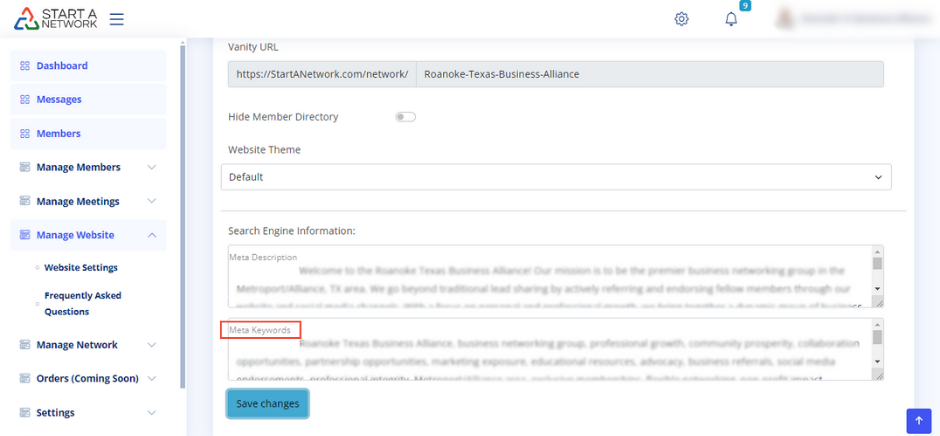
5. Search Engine Information
- Meta Description:
- A short summary that describes your network’s web page.
- Displayed below the page title in search engine results.
- Tip: Write a concise, engaging description to attract clicks.
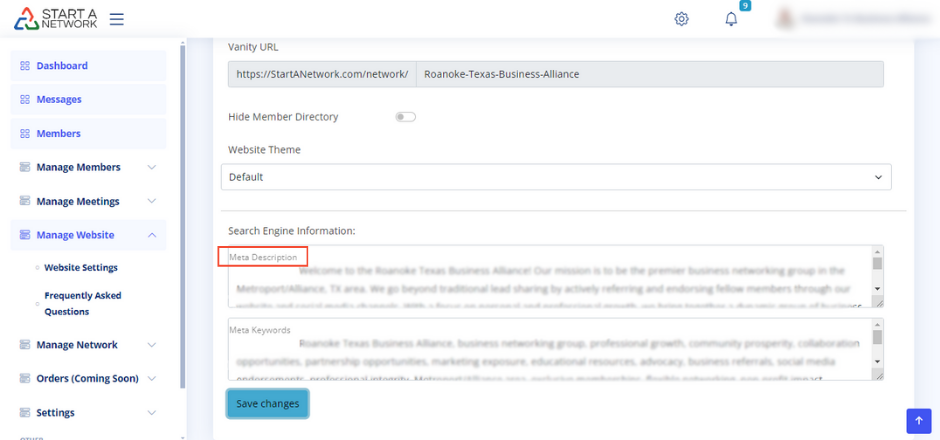
- Meta Keywords:
- Words or phrases relevant to your site’s content.
- Though not heavily used by search engines like Google, they provide context for your site.