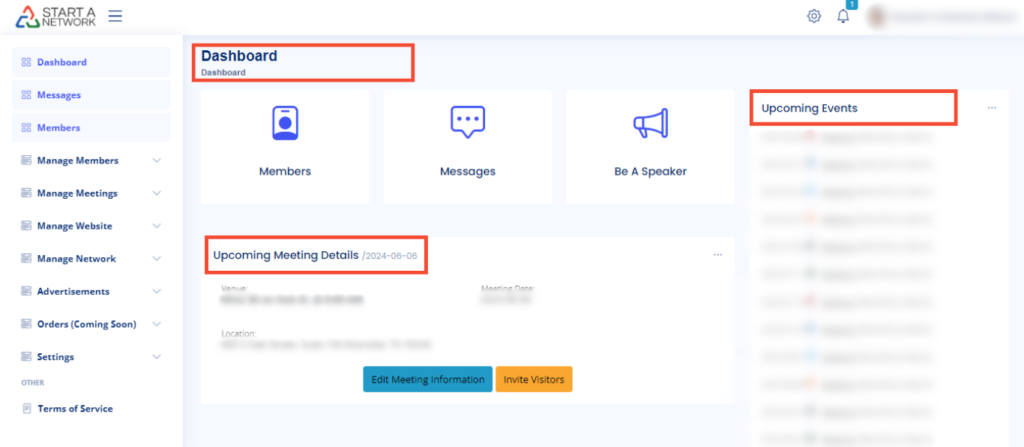
Access the “Manage Meetings” Section
- Go to your dashboard.
- Locate the “Manage Meetings” option on the left-hand menu.
- Click on “Speakers” to enter the speaker management section.
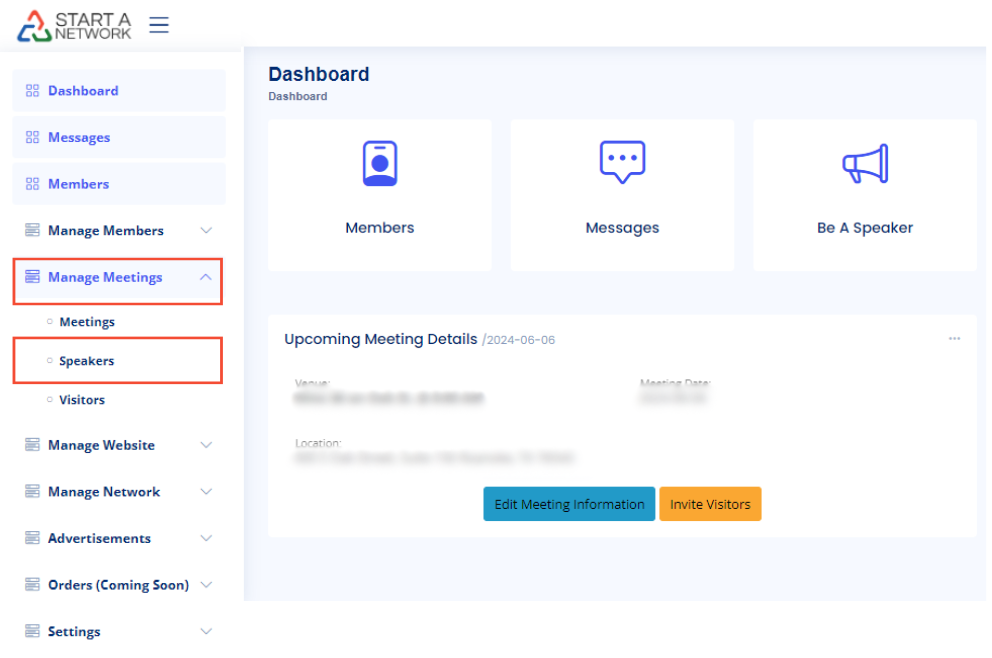
Understanding the Sections
- The “Speakers” section contains three subsections:
- Proposed Speakers
- Approved Speakers
- Add New Speaker or Event
- Let’s go through each section to understand how to manage your speakers effectively.
Handling Proposed Speakers
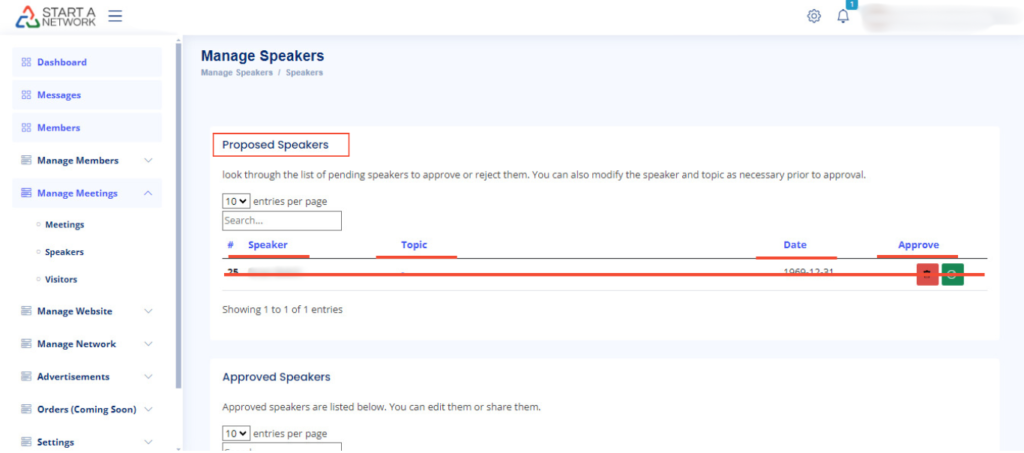
- Proposed Speakers: This is where your network members can submit their requests to speak at specific meetings.
- In this section, you’ll see the following details for each request:
- Speaker Name: Name of the member requesting to speak.
- Topic: The topic they wish to discuss.
- Date: The proposed date for the speaking engagement.
- Approve: You have the option to approve or decline each request.
- To approve a request:
- Click “Approve” next to the speaker’s name.
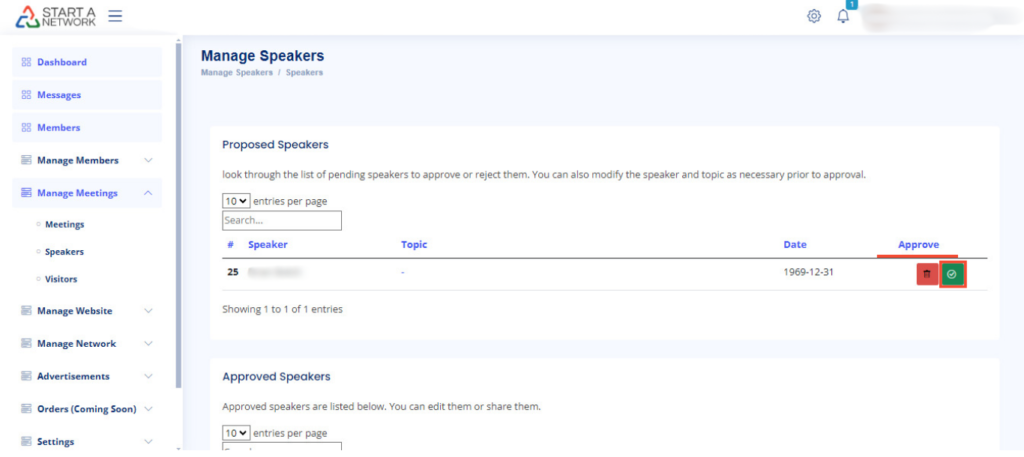
- The request will automatically move to “Approved Speakers”.
- Click “Approve” next to the speaker’s name.
- You can also view Approved Speakers directly on your dashboard. Click on “Dashboard”, and you’ll see a list of upcoming events with approved speakers on the right side of the screen.
Adding New Speakers or Events
- As a network owner, you have the ability to assign speakers or add new events.
- To get started, click “Add New Event”.
If You Choose “Speaker”:
- For Network Members:
- Select a member from the list.
- Fill in the Topic, Topic Description, and Event Date.
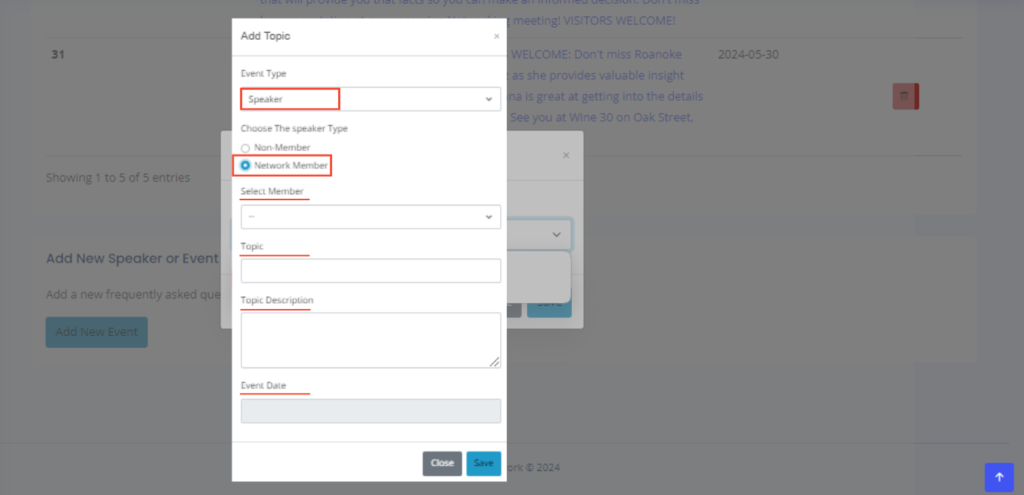
- For Non-Members:
- Provide the speaker’s name, topic, topic description, and event date (choose a date from the system’s calendar).
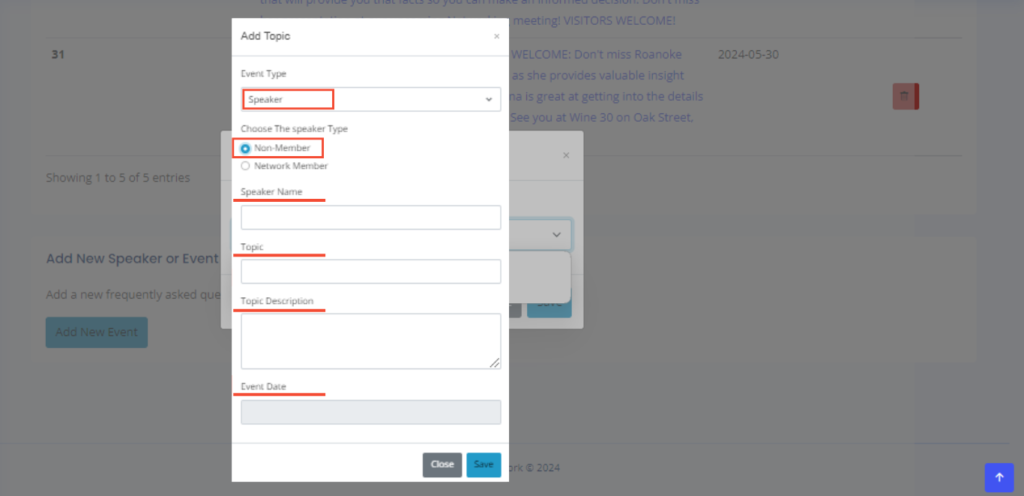
- Provide the speaker’s name, topic, topic description, and event date (choose a date from the system’s calendar).
- After filling out the necessary details, click “Save”. The speaker will receive a notification about their speaking engagement.
If You Choose “Event”:
- As the network owner, you will automatically be the speaker for the event.
- Fill in the required event details, so members and attendees know the specifics of the event.
Viewing Approved Speakers and Events
- Every approved speaker and scheduled event will automatically appear under the “Upcoming Events” section on your dashboard.
- This gives you an easy overview of all the speakers and events in your network.